On-brand product imagery for ecommerce, without a studio
Turn one clean product photo into lifestyle scenes, seasonal variants, and channel sizes that all match your brand, without a studio or a reshoot.
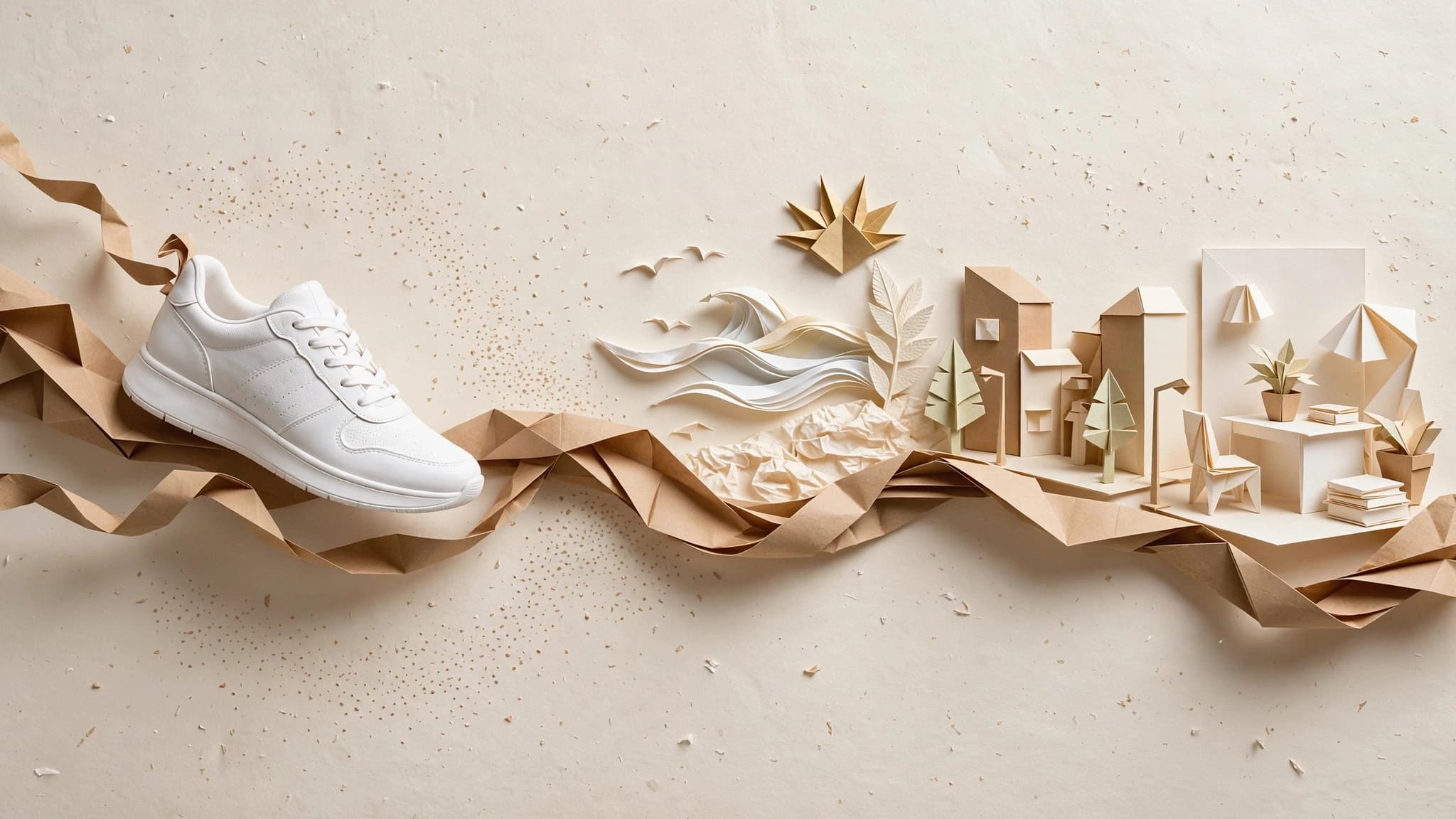
You don't need a studio to ship consistent product imagery. With one clean photo per product, a brand kit, and a repeatable AI workflow, you can produce lifestyle scenes, seasonal variants, and channel-ready sizes that all look like the same brand shot them. Then you rerun the whole thing for your next SKU.
What you'll have at the end
By the end of this playbook you'll have a reusable workflow that takes a single product photo and returns a complete image set: three to six lifestyle scenes that match your brand's palette and mood, seasonal variants of your best scene, and every crop your channels need: square for the product grid, vertical for social, wide for the homepage banner.
More importantly, you'll have it as a saved workflow, not a one-off. When the next product arrives, you swap the photo and run it again. The scenes, the look, and the sizes stay put. That repeatability is the real win. It's what makes a 200-SKU catalog feel like one brand instead of 200 separate photo decisions.
What you need before you start
Three things:
- One clean photo per product. Plain background, even lighting, sharp focus. A white-background supplier shot works. If you sell on Amazon you likely have one already, since Amazon's own product photo guide calls for main shots on a pure white background (RGB 255, 255, 255) with the product filling 85% or more of the frame. A phone photo on a sheet of paper works too, as long as the product is crisp.
- Your website URL. That's where the brand kit comes from, so you don't need to dig out a brand PDF.
- A Orisu account. The free tier covers this whole playbook, and credits are priced as concrete outputs, so you know what a set of images costs before you run it.
How do you turn one product photo into a full image set?
Six steps. The first three build the workflow; the last three make it repeatable.
Step 1: Build your brand kit from your website
Paste your website URL into Orisu and it extracts a brand kit automatically: your colors, fonts, voice, logo, and guidelines. This is the step most teams skip when they try AI product imagery, and it's why their results look like generic stock. Without a brand layer, every generation pulls from the model's defaults, and the model's defaults belong to no one.
The brand kit gets applied to every generation downstream. Review what was extracted before moving on: confirm the primary and secondary colors are right and the voice summary sounds like you. Two minutes here saves a lot of regeneration later. (More on how this works on the brand kit deep dive.)
Step 2: Write scene direction from your brand palette
Now decide what your scenes look like. This is creative direction, the same job an art director does before a shoot. You're just writing it down instead of briefing a photographer. The big sites treat it as worth the effort: Baymard Institute's research on inspirational product imagery found bespoke imagery is one of the biggest factors in a shopper's first impression of a site, and 88% of the leading ecommerce sites they benchmark use lifestyle scenes.
Work from your brand palette, not from a mood board of other brands. If your palette is warm terracotta and cream, your scenes are morning light, linen, wood, and clay, not blue-hour concrete. Write three to six short scene briefs, one or two sentences each:
- Background: what surface and setting the product sits in ("oak table near a window," "bathroom shelf with eucalyptus").
- Lighting mood: the time of day and quality of light ("soft morning side light," "bright and even, slight warmth").
- Distance and angle: hero close-up, in-context mid shot, or environment wide.
Keep the briefs short and concrete. Vague direction ("aesthetic, premium, beautiful") produces vague images. Specific direction produces scenes you'd recognize as yours.
Step 3: Generate scenes in a batch
On the canvas, connect your product photo and scene briefs to image generation nodes, one per scene. Each node uses your photo as the product reference and a scene brief as the direction, with the brand kit applied on top.
Orisu puts 100+ models under one subscription, so you can pick per scene: the Nano Banana family is strong at placing an existing product into a new scene while keeping it faithful; Seedream and the Flux family are worth trying for stylized hero shots. You don't have to commit. Run the batch, compare, and keep the model that treats your product best.
Run all scenes at once. Generating in a batch matters for more than speed: you're evaluating the set as a set, which is exactly how a customer scrolling your product page experiences it.
Step 4: Review the set for consistency
Lay the results side by side and ask one question: do these look like the same brand shot them? Not "is each image nice." Sets fail as sets, not as individual frames. This check deserves real attention because images are where shoppers start: in Baymard Institute's product page usability testing, 56% of users' first action on a product page was to explore the images, before reading the title or description.
Check four things:
| Check | What drift looks like |
|---|---|
| Product fidelity | Label warped, proportions off, color shifted |
| Palette | One scene went cool while the rest stayed warm |
| Lighting mood | Hard noon shadows next to soft morning light |
| Prop world | Marble and chrome in one scene, linen and wood in the rest |
Fix problems at the source, not the symptom. A scene that drifted usually means its brief was vague. Tighten the brief and rerun that node. Because reruns recompute only the changed steps, fixing one scene doesn't cost you the other five.
Step 5: Cut crops and sizes per channel
One approved scene needs to live in several places, and each place has its own shape: square for the product grid, 4:5 or 9:16 for social, wide for banners and email headers.
Add the crop and resize steps to the same workflow rather than doing this in a separate tool. Two reasons. First, framing is a brand decision. How much breathing room the product gets should be consistent across channels, and a workflow enforces that where manual cropping doesn't. Second, when the workflow owns the crops, every future product gets them for free.
Step 6: Rerun for the next SKU
This is where the playbook pays off. Save the workflow, swap in the next product's photo, and run. The scene briefs, brand kit, model choices, and crops all stay put, and only the steps affected by the new photo recompute. Your second product takes minutes, not an afternoon, and your tenth looks like it belongs in the same catalog as your first.
If teammates handle new SKUs, turn the workflow into a simple app with App Mode: they upload a photo and hit run, without ever touching the canvas.
Variations on this workflow
- Seasonal refreshes. Duplicate your scene briefs and shift the props and light: autumn warmth, summer brightness, a holiday set. The product steps don't change, so a seasonal refresh of the whole catalog is a batch rerun, not a project.
- Market variants. Same scenes, different cultural context. Swap the props and settings per region while the brand layer keeps the palette and mood steady.
- Ad variants. The same source scenes feed ad creative directly; see the ad variants playbook for taking a set from product page to paid social.
When do you still need a real photo shoot?
Honest answer: sometimes. AI scene generation is at its best placing a rigid, well-defined product into a new setting. It's weaker where physical truth is the product:
- Fabric and texture. Drape, weave, and hand-feel are why people buy textiles, and generated fabric still reads slightly wrong up close. Shoot apparel and soft goods for hero shots; use AI for context scenes.
- Food. Customers are exceptionally good at spotting fake food, and appetite appeal lives in real steam, real gloss, real crumb. Shoot the food; generate the table around it if you like.
- Regulated claims. If an image supports a claim (sunscreen on skin, a supplement's effect, before/after anything), the image is evidence, and evidence shouldn't be generated. The same goes for marketplaces that require photos of the physical item.
- Color-critical products. When the exact shade is the purchase decision (paint, cosmetics, brand-color merchandise), verify against the physical product before publishing.
The practical split most ecommerce teams land on: one real photo per product as the source of truth, generated scenes for everything around it.
Common mistakes
- Skipping the brand kit. Generic-looking output is almost always a missing brand layer, not a model problem.
- Art-directing one image at a time. You get six nice images that don't belong together. Direct the set, then generate.
- A messy source photo. Blur, shadows, and clutter in the source carry into every scene. Fix the photo first.
- Publishing without the side-by-side check. Individually fine, collectively drifting. Always review as a set.
- Treating it as a one-off. If you don't save the workflow, you'll rebuild your scene direction from memory next month, and it won't match.
The runnable version
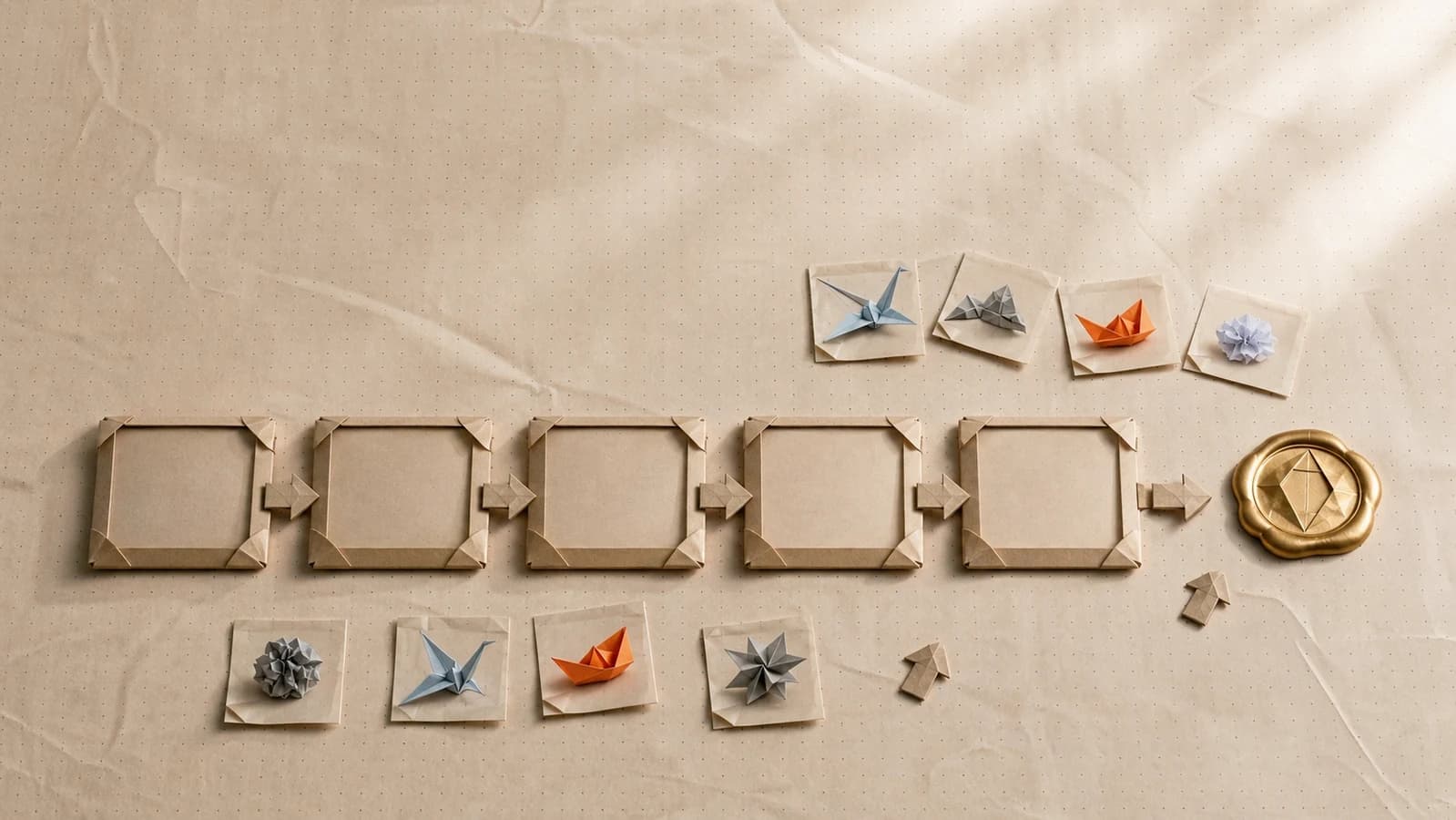
This workflow exists as a ready-to-run setup. See the product ads solution to start from it instead of building from scratch. Paste your site, upload a product photo, and you'll have your first on-brand set in one sitting. One clean photo in, a folded-out catalog of scenes coming back.
This playbook is a pipeline.
Build it once on the canvas, wire in your brand kit, and rerun it every time the brief changes. Free to start, no card.
Common questions.
Can AI really replace product photography for ecommerce?
For lifestyle scenes, seasonal variants, and channel resizes, yes. One clean source photo is enough to build a full image set. For texture-critical products like fabric and food, or for images that support regulated claims, a real shoot is still the safer call. Most catalogs land on a mix of both.
How do I keep AI product images consistent with my brand?
Make your brand machine-readable. A brand kit holds your colors, fonts, voice, and guidelines, then feeds them into every generation automatically, which keeps scenes consistent without manual prompt discipline. Without that layer, every image is a fresh roll of the dice and drift creeps in fast.
What kind of product photo works best as an AI source image?
A sharp, well-lit photo of the product on a plain background, shot straight on or at a slight angle, with no heavy shadows or props. The cleaner the source, the more faithfully the product carries into generated scenes. One good photo per SKU is usually enough.
How long does it take to build a product image set with AI?
The first product takes the longest because you are building the workflow: brand kit, scene direction, batch generation, and crops. In our experience that setup is an afternoon. After that, each new SKU is a rerun. You swap the source photo and only the changed steps recompute.